Partner help center · Your listing
Pick the counties you serve
Your listing appears on the benefit pages of each county you pick, and in the local-resources box for visitors in those counties. Pick only the counties where you really serve clients.
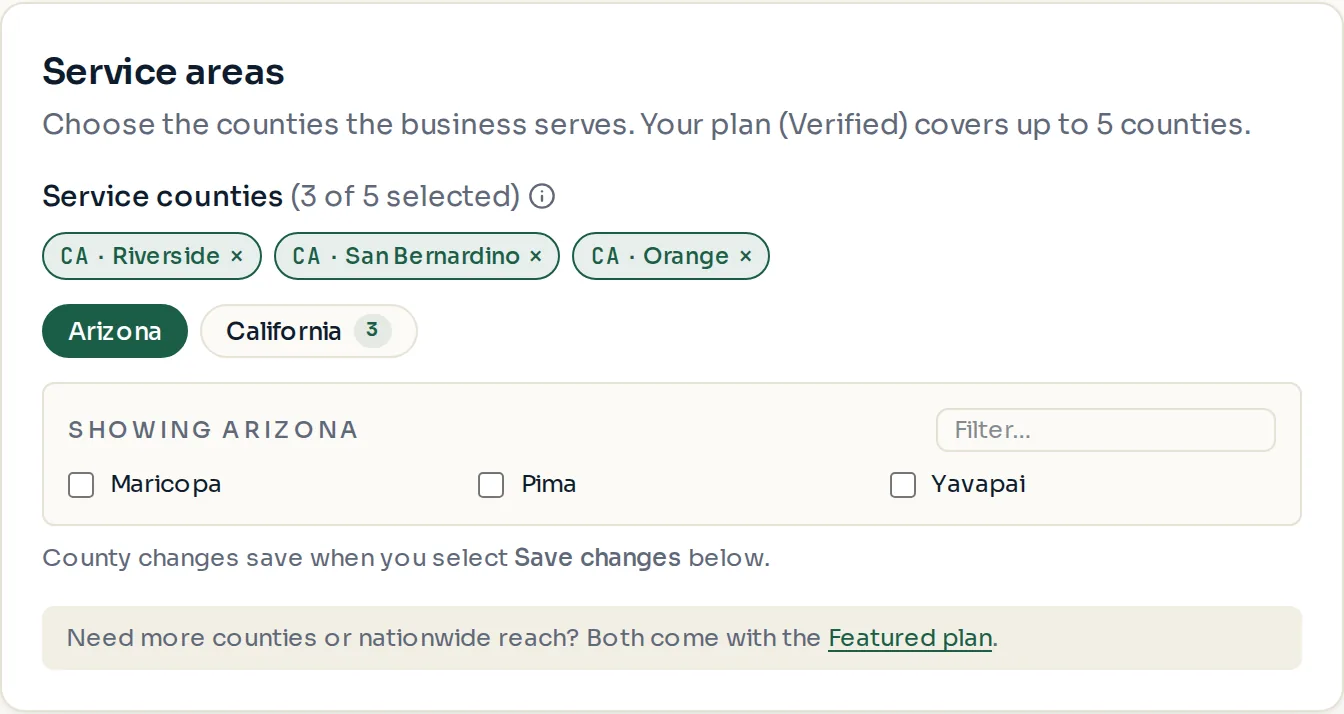
- Open "Edit listing" and scroll to "Service areas".
- Choose a state tab, then check each county. The counter shows how many of your plan's counties you have used.
- Select "Save changes".
Counties by plan
Basic includes one county. Verified includes a few. Featured includes the most. The exact numbers are on the plan table in the guide "Choose a plan" and on the Billing page.
Verified and Featured can add extra counties past the ones included. Each extra county is a set monthly price, shown on the plan cards. The county picker shows the new monthly total as you tick counties. Saving more extra counties charges the card on file a prorated amount today, after you confirm it; removing counties credits the unused part today.
Statewide and nationwide coverage are set up by custom quote, not from the dashboard. Email support@discoverseniorbenefits.com with the area you serve. If your plan already has nationwide coverage, the "Nationwide coverage" switch lets you turn it off; only support can turn it back on.
- Moving to a plan that includes fewer counties keeps your counties and bills the difference as extra counties. To pay less, remove counties under Edit listing → Service areas first.
- Checking counties you do not serve hurts you. Visitors there will call, find out you cannot help, and the listing can be reported.
Paid placement never changes anyone's eligibility results. Read the advertising policy.