
Partner help center · Results and reports
The monthly report
Once a month, paid listings get a short email with the previous month's numbers. The same report, for any of the last twelve months, is on the listing dashboard with a CSV download.
The email
The email, titled "Your [Month] DiscoverSeniorBenefits report", arrives in the first week of each month. Months with no activity at all are skipped, so a quiet month means no email, not a lost one.
To turn it off or on, open "Listing dashboard", scroll to "Monthly report email" and use the "Send a monthly performance report" box.

The report on the dashboard
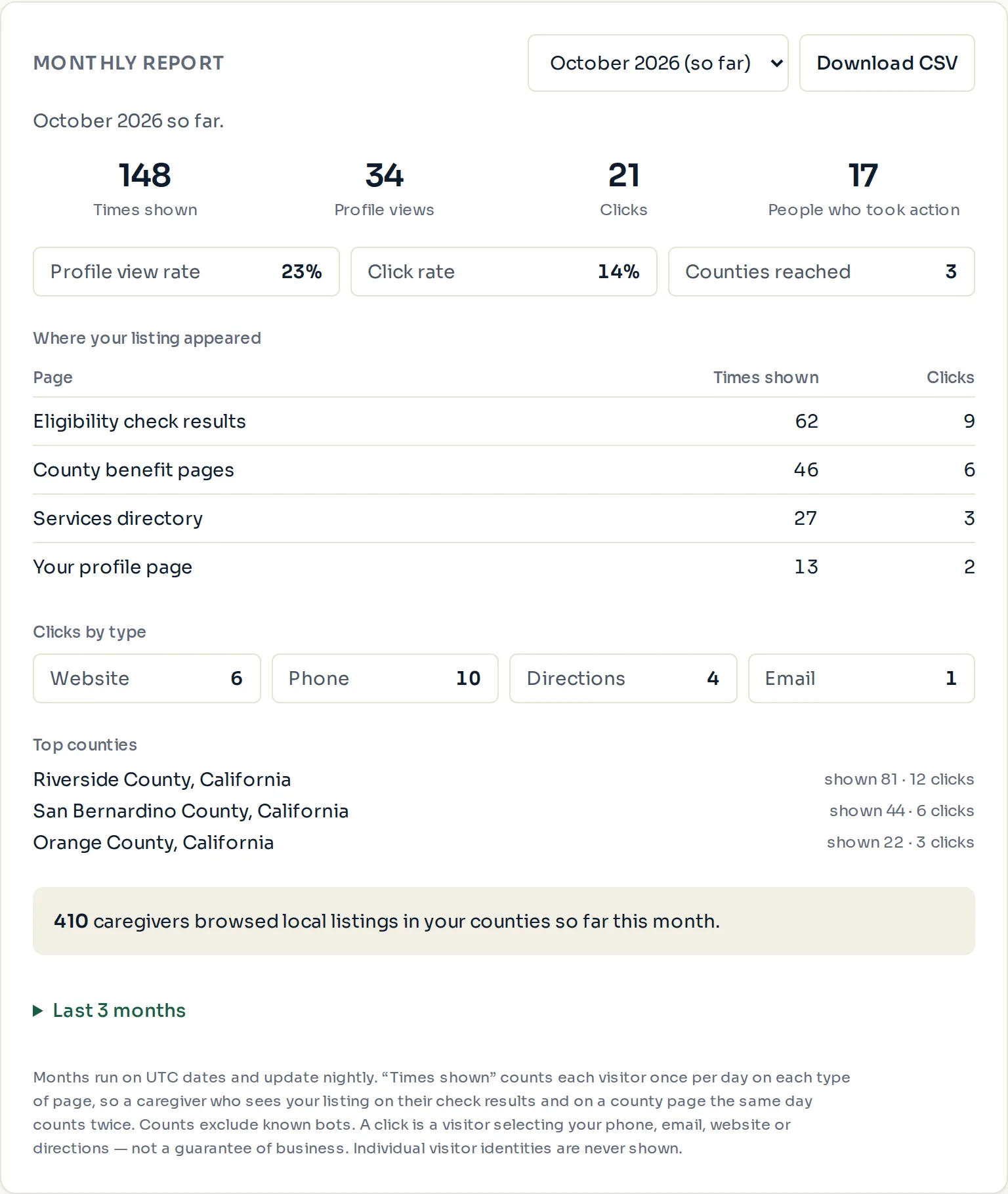
"Times shown", "Profile views", "Clicks" and "People who took action" are the month's totals, each with a comparison to the month before.
"Profile view rate" is profile views divided by times shown. "Click rate" is clicks divided by times shown. "Counties reached" counts the counties where the listing was shown.
- Open "Listing dashboard" and scroll to the monthly report.
- Pick a month from the drop-down. The newest month is the one in progress and is marked as still growing.
- Select "Download CSV" to save the month as a spreadsheet file.
The "Where your listing appeared" rows
"Eligibility check results": the local-resources box people see right after their check.
"County benefit pages": the pages for each county you serve (Featured plan).
"Services directory": the category and county lists in the directory.
"Your profile page": your own listing page.
"Featured spotlight": the weekly spotlight on the directory home page (Featured plan).
"Blog articles": the footer of related articles (Featured plan).
"Other pages": anywhere else, such as a shared link.
The first three rows always show, even at zero, because they are the ones businesses ask about most.
Paid placement never changes anyone's eligibility results. Read the advertising policy.