
Partner help center · Get started
Add your business
Adding a business takes about ten minutes on the For partners page. Every listing, free or paid, is reviewed by a person before it goes live. Nothing is billed until after review.
Before you start
- Go to discoverseniorbenefits.com/for-partners and scroll to "Claim your business or add it".
- Type your business name in the search box. If it is already listed, select "Claim this listing" instead. See the guide "Already listed? Claim it".
- If nothing matches, select "Add your business".
Filling in the form
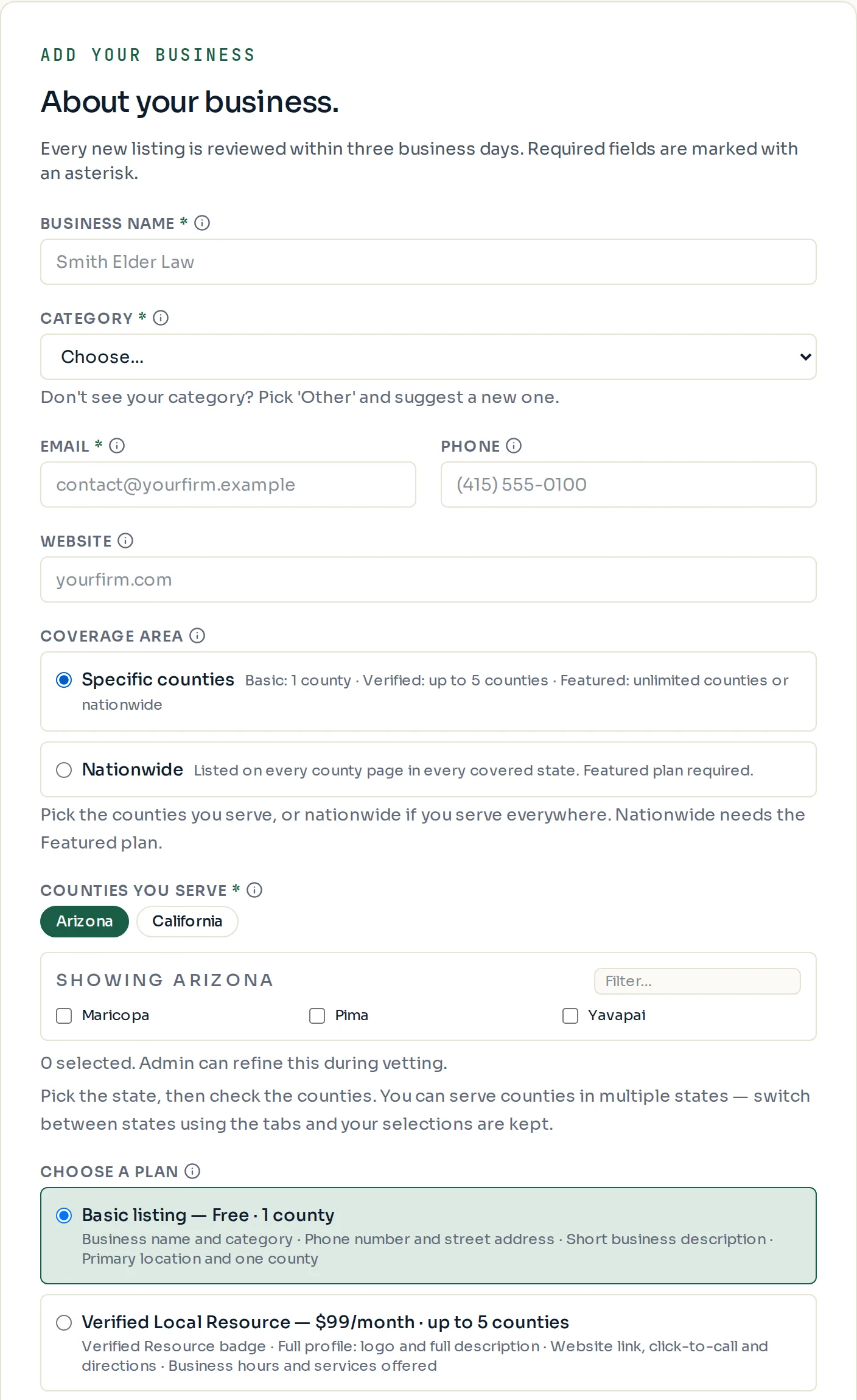
Required fields are marked with an asterisk. Each field has a small "i" next to its label; hover over it or tap it for an example.
- "Business name": the name clients know you by. It becomes the title of your listing.
- "Category": the one kind of help you mainly offer. It decides which benefit pages show your listing. Pick "Other (suggest a new category)" if none fits and type a short name.
- "Email": where the review result and your sign-in link go. An address on your own website domain speeds up review.
- "Phone" and "Website": the number clients call and your site. Paid plans show the website as a link.
- "Coverage area": "Specific counties" for most local businesses. "Nationwide" is for phone or online services and needs the Featured plan.
- "Counties you serve": pick a state, then check every county where you really serve clients. The plan you choose sets how many you can pick.
- "Choose a plan": Basic, Verified or Featured. You can change this later.
- "Street address", "City", "State" and "ZIP code": your main office. Leave the street address blank for home-visit or phone-only services.
- "Short description": what you do and who you help, in plain words. Put the most important part first; Basic listings show the first 200 characters.
- "Details for the reviewer": private notes that are never shown publicly, such as a license number or how long you have been in business.
- Check the box to accept the resource standards, then select "Submit for review".
What happens next
A confirmation email arrives right away ("Got your DiscoverSeniorBenefits listing request"). A reviewer checks the details within three business days.
When the listing is approved, an email with a sign-in link follows, and the listing goes live at the level you chose.
If you picked a paid plan, the approval email includes a secure Stripe Checkout link. The subscription starts when you complete that checkout, and the full profile and placement switch on at that point.
- A listing that is approved on a paid plan but not yet paid shows as a Basic listing until checkout is done.
- You can sign in and fill out the rest of the profile while the review is still in progress.
Why some businesses are not accepted
The directory does not list Medicare Advantage brokers, hearing-aid sales, lead generators, debt-relief services, reverse-mortgage brokers or life-insurance sales. These categories are kept out to protect the trust of the people the site serves.
Each business also agrees to four resource standards: no claim of government affiliation or endorsement, no promise of guaranteed benefits or amounts, no misstated prices or credentials, and no use of a listing to collect or resell visitor data. See the guide "Who can list, and who can't".
Paid placement never changes anyone's eligibility results. Read the advertising policy.